YouTube Description Generator
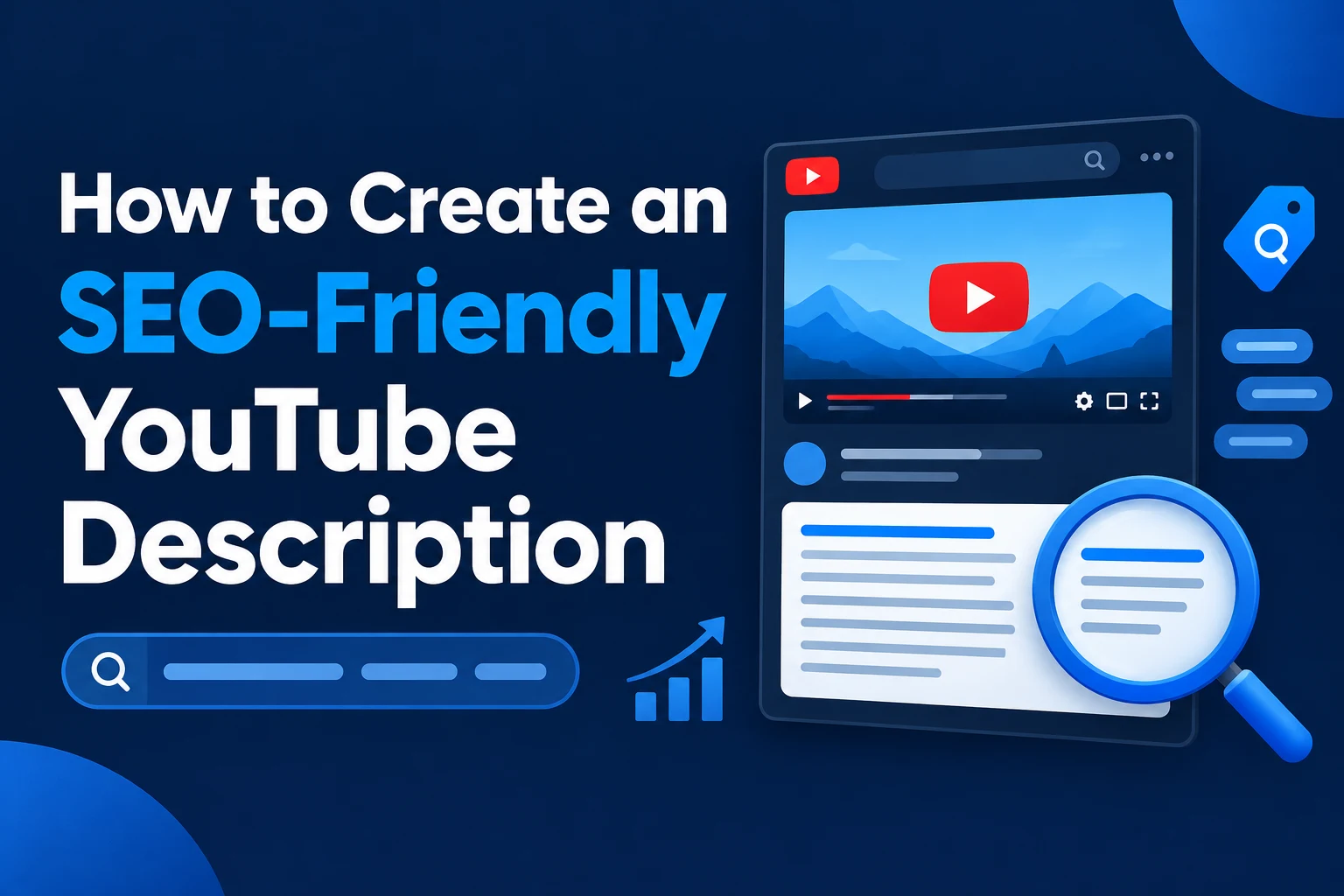
Create clear, SEO-friendly video descriptions with our free YouTube Description Generator. Generate description ideas, save time and prepare your YouTube videos for publishing.


What Is a YouTube Description Generator?
A YouTube description generator is a tool that creates a draft description for your video based on the information you provide. Instead of staring at an empty description box, you can use this YouTube description generator tool to get a starting point, then adjust it to fit your video. Some people call it a YouTube description maker, since it helps you put the text together faster.
The result is a draft. You know your video best, so you should always read it, correct it and add anything the tool could not know.
Generating Descriptions vs. Extracting Descriptions
- Generating descriptions means creating a new description for a video you are preparing to publish. This is what this page does.
- Extracting descriptions means retrieving the description of a video that is already published. To read what another video uses, try the YouTube Description Extractor.
Benefits of Using the Tool
Save Time on First Drafts
Writing a description for every upload can slow you down. A generated draft gives you something to edit, which is usually quicker than starting from scratch.
Organize Your Video Information
Entering your video details in one place can help you think through what the description should cover, such as the topic, key points and anything you want viewers to know.
Get Description Ideas
Seeing a draft can show you ways to structure the text and phrase your summary, even if you end up rewriting most of it.
How to Generate a YouTube Description
- Gather your video details. Decide on your topic and the main points the video covers.
- Enter your information into the input field or fields on this page.
- Generate the description and wait for the draft to appear.
- Review the draft. Check every line against your actual video and remove anything that does not apply.
- Edit and copy it. Add your own links, details and wording, then paste it into your video in YouTube Studio.
What Makes a Good YouTube Description?
A good description helps viewers understand what the video covers and where to go next. Most effective descriptions share a few qualities:
- Clarity: The first lines should say what the video is about in plain language.
- Accuracy: Everything should match what the video really contains.
- Relevant keywords: Words people would naturally use to describe the topic should appear in readable sentences.
- Useful links: Include links to resources, related videos or your website where they are relevant to viewers.
- Helpful details: Chapter timestamps, credits or a short list of what the video covers can make the video easier to follow, if they apply.
Tips for Writing SEO-Friendly YouTube Descriptions
- Put the key information first. The opening lines are the most visible part, so make them count.
- Write for people first. A natural description that reads well is better than one packed with keywords.
- Use your main topic naturally. Mention it where it fits and avoid repeating the same phrase over and over.
- Stay accurate. Do not describe things the video does not show. Misleading descriptions can disappoint viewers and may go against YouTube's policies.
- Edit the generated text. Make it sound like you and add details only you know about the video.
- Do not rely on the description alone. It works together with your title, thumbnail and the video itself, and no single detail guarantees better rankings or views.
Who Can Use This Tool?
- YouTube creators who want a quicker way to draft descriptions.
- Beginners who are not sure what a description should include.
- Marketers preparing videos for campaigns.
- Businesses publishing tutorials, product videos or announcements.
- Channel managers handling uploads for several channels or clients.
Practical Use Cases
- Tutorials: Summarize the steps the video teaches and list any tools or resources mentioned.
- Reviews: Explain what you reviewed and what viewers can expect to learn from it.
- Educational videos: Outline the main topics and add references or further reading.
- Entertainment content: Write a short, engaging summary and link to related videos or your social profiles.
- Business and product videos: Describe the offer clearly and add relevant links for viewers who want to learn more.
Prepare the Rest of Your Upload
A description is only one part of publishing a video. These related tools can help with the other details:
- Draft a headline with the YouTube Title Generator.
- Get tag ideas with the YouTube Tag Generator.
- Create hashtag ideas with the YouTube Hashtag Generator.
- Review how an existing video is titled with the YouTube Title Extractor.
- After publishing, look at your video's details with YouTube Video Statistics.
Frequently Asked Questions
What does the YouTube description generator do?
It creates a draft description for your video based on the information you enter, so you have something to review and edit.
Can I use the generated description exactly as it is?
You can, but it is better to review and adjust it. Make sure it accurately describes your video and includes any links or details specific to your content.
Will the description improve my video's SEO?
A clear, accurate description helps viewers and search understand what your video is about, but it does not guarantee higher rankings, views or subscribers. Results depend on your content, title, thumbnail, audience and many other factors.
Should I include keywords in my description?
Yes, where they fit naturally. Use the words people would use to describe your topic, and avoid repeating the same phrase or adding unrelated terms.
Can I customize the generated text?
Once you have the draft, you can edit it freely before pasting it into YouTube Studio. Change the wording, add links and remove anything that does not fit.
How long should a YouTube description be?
There is no required length. Make it as long as it needs to be to explain the video and offer useful details, and put the most important information at the start.
Can I see how other videos write their descriptions?
Not with this tool, which creates new drafts. To view the description of an existing video, use the YouTube Description Extractor.
Generate a Description for Your Next Video
Enter your details above, review the draft, and edit it into a description that describes your video clearly and honestly.
Ahassan
CEO / Co-Founder
Hello, I'm A Hassan, the owner of YTLargeTools. I created YTLargeTools with a simple goal: to make useful online tools accessible to everyone. I believe everyday tasks should be simple, convenient and easy to complete without unnecessary complications.
Recent Posts